This thread has been locked.

If you have a related question, please click the "Ask a related question" button in the top right corner. The newly created question will be automatically linked to this question.

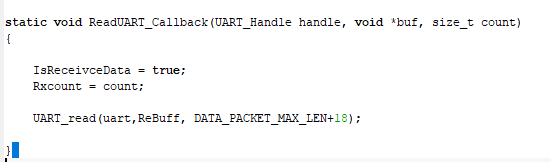
CC2640R2F SDK10.0 用uart_read();异步去读串口数据的函数,功耗就会一直飙升到2.5毫安!!求助

Other Parts Discussed in Thread: CC2640
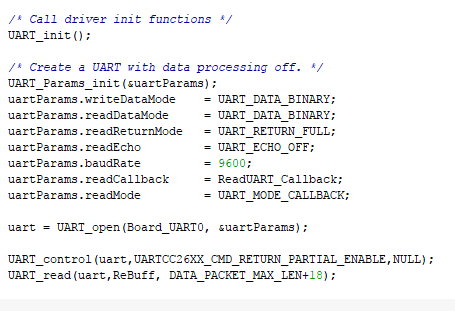
还有什么办法可以降低功耗,去进行串口数据收发吗?????

  • http://processors.wiki.ti.com/index.php/Cc2640_Adding_a_UART_or_SPI_driver_to_a_Sample_Project

    Cc2640 Adding a UART or SPI driver to a Sample Project

    Introduction

    This wiki will describe how to use the Transport Layer to add UART or SPI serial communication to an existing BLE project. Please note that this wiki does not apply to application processor implementations, see the SimpleAP + SNP wiki for information about the application processor setup here

    FAQ

    • Q: Do I need to use a bridge in my project?
    • A: You must use a bridge if you are using PM (allowing your processor to sleep) and communicating with a PC, or if you are using SPI and communicating with a PC.
    • Q: What is the function of the bridge, what if I don't have one?
    • A: The bridge is used to convert USB or RS232 voltages to voltages that are safe for the CC26xx. If you don't have a bridge and must communicate with a PC, use UART without PM. If you are attempting to communicate with another device(MCU) that accepts UART or SPI signals at the acceptable logic levels then you will not need a bridge(remember that this MCU will need GPIOs for MRDY/SRDY if PM is used). See the CC26xx Technical Reference Manual for details on I/O logic levels.
    • Q: When is PM needed?
    • A: Power Management(PM) is needed whenever the CC26xx device is allowed to sleep (when POWER_SAVING is defined in the application). It is also required whenever the SPI protocol is used, this due to inherent limitations of SPI.
    • Q: How can I get started using TL to send/receive data?
    • A: Apply the patch attached here, then see our Setting up a bridge section if you need a bridge. After hooking it all up, it is a good idea to verify the setup is working. Our TL implementation should echo back characters sent to it from a PC. Once the configuration is verified, see our TL API section for functions you can call to customize your app's functionality.

    Definitions

    Before getting started, let's review some terms and concepts that will be used throughout this wiki.
    Term (acronym) Definition
    Handshaking A design paradigm in communication protocols where each transaction is preceded by an a request from the initiating processor and acknowledge from receiving processor (a handshake).
    Master Ready (MRDY) A GPIO pin whose logic level indicates the state of the master processor. MRDY is an active low (low true) signal. An MRDY event indicates that the master processor is ready to send or receive data. See NPI timing diagrams for more info
    Slave Ready (SRDY) A GPIO pin whose logic level indicates the state of the slave processor. SRDY is an active low (low true) signal. An SRDY event indicates that the slave processor is ready to send or receive data.
    Transport Layer (TL) An abstraction layer between the application and serial hardware (UART or SPI module within CC26xx) used for handling message framing and power management.
    Network Processor Interface (NPI) NPI is a serial communication protocol developed by TI. It is the foundation of our network processor project (SimpleNP), concepts and code are re-used from NPI to implement our TL.
    Power Management (PM) Refers to when the CC26xx device is allowed to enter into a low power sleep mode.
    TI Real Time Operating System Drivers (TI RTOS drivers) The TI RTOS provides software for communicating with the CC26xx hardware modules such as UART and SPI. This software in included in the TI RTOS release bundled with the BLE stack
    BLE_STACK_INSTALL Refers to the system path to the root folder of the BLE stack install for the CC26xx device, by default this is: C:\ti\simplelink
    BLE_STACK_v1.4.1 Refers to the system path to the root folder of the BLE stack install for the CC254x device, by default this is: C:\Texas Instruments\BLE-CC254x-1.4.1.43908

    Prerequisites

    • 1 SmartRF06 Board + CC2640 EM
    • Proper cables: USB, RS232, etc
    • Installed BLE Software Stack (SDK) 2.1.0
    • TL Patch files found on our git page (git) or github page (github)
    • Familiarity with the NPI protocol on which the TL is built, NPI
    • (Optional) 1 Serial Bridge
    • (Optional) Jumper wires, used to connect to serial bridge
    • (Optional) Installed BLE Software Stack (SDK) 1.4.1. Used if CC254x is used as a serial bridge
    • Familiarity with the hardware platforms
    • SmartRF06 Board schematics and PCB layouts can be found under technical documents
    • SmartRF05 Board If using the SmartRF05 as a bridge, schematics can be found in this document
    • 7ID EM Use these schematics to determine what pins on the chip are routed to the SmartRF06 board
    • 5XD EM Same as above, but for 5x5mm package of CC26xx
    • CC26xx TRM Guide that contains all information regarding the CC26xx hardware
    • Familiarity with the Software Developer's guide, found in the Documents folder of the BLE Stack v2.1 install (SWRU393_CC2640_BLE_Software_Developer's_Guide.pdf)
    • Familiarity with the NPI protocol: http://processors.wiki.ti.com/index.php/NPI
  • Adding TL Layer to existing BLE Application

    The TI TL implementation is not bundled in the BLE Stack installer. It is applied in the form of a patch which is supported by IAR and CCS. The example below shows how to interface with the TL from SimpleBLEPeripheral. This example can be further modified to handle advanced data packets to work with your application, follow the comments in the TL.c and TL.h files to learn where to customize them for a custom packet. It is a good idea to test the basic echo functionality to ensure your hardware setup is valid.

    Adding TL files to existing project

    1. Copy required files in to project folder, NPI files can be found under BLE_STACK_INSTALL/Components/npi. Be sure to copy these files as other projects in the stack rely on them being in this location.
    • npi_rxbuf.c
    • npi_tl.c
    • npi_tl_spi.c or npi_tl_uart.c depending on the transport protocol
    • tl.c (included in patch linked above)
    • tl.h (included in patch linked above)
    2. Modify preprocessor directives:
    IAR
    • Right click on project name, options > C/C++ Compiler > Preprocessor
    • Add NPI_USE_UART or NPI_USE_SPI according to what protocol you are using
    CCS
    • Right click on project name, properties > Build > ARM Compiler > Advanced Options > Predefined Symbols
    • Add NPI_USE_UART or NPI_USE_SPI according to what protocol you are using
    3. Modify Include Path to include NPI
    IAR
    • Right click on project name, options > C/C++ Compiler > Additional include directories:
    • $PROJ_DIR$/../../../../../../../Components/npi
    CCS
    • Right click on project name, properties > Build > ARM Compiler > Include Options
    • "${ORG_PROJ_DIR}/../../../../../../../Components/npi"

    Application Code Modificaitons

    The application code (i.e simpleBLEPeripheral.c) must be modified as follows. Note that all of these software concepts (callbacks, internal events, etc) are further explained in the software developer's guide. The TL layer itself is further detailed in the Software Architecture and Considerations Section. 
    1. Include the TL header file:
    #if defined (NPI_USE_UART) || defined (NPI_USE_SPI)
    #include "tl.h"
    #endif //TL
    2. Where the application's internal events are defined, add three more which are needed by TL. Ensure that these do not overlap with any preexisting events (each event should be a bit value):
    #if defined (NPI_USE_UART) || defined (NPI_USE_SPI)
    //events that TL will use to control the driver
    #define MRDY_EVENT 0x0010
    #define TRANSPORT_RX_EVENT 0x0020
    #define TRANSPORT_TX_DONE_EVENT 0x0040
    #endif //TL
    3. Add buffer size define to easily change TL buffer size:
    #if defined (NPI_USE_UART) || defined (NPI_USE_SPI)
    #define APP_TL_BUFF_SIZE 150
    #endif //TL
    4. Declare an array to parse TL data from:
    #if defined (NPI_USE_UART) || defined (NPI_USE_SPI)
    //used to store data read from transport layer
    static uint8_t appRxBuf[APP_TL_BUFF_SIZE];
    #endif //TL
    5. Declare the application's callback parsing function.
    #if defined (NPI_USE_UART) || defined (NPI_USE_SPI)
    //TL packet parser
    static void SimpleBLEPeripheral_TLpacketParser(void);
    #endif //TL
    6. Declare the application's callback structure which will be passed to TL:
    #if defined (NPI_USE_UART) || defined (NPI_USE_SPI)
    static TLCBs_t SimpleBLEPeripheral_TLCBs =
    {
    SimpleBLEPeripheral_TLpacketParser // parse data read from transport layer
    };
    #endif
    7. In the application's init function (i.e. simpleBLEPeripheral_init()), initialize the TL. This involves passing the application's semaphore (used for thread synchronization), callback function, and internal events for TL to the TL layer:
    #if defined (NPI_USE_UART) || defined (NPI_USE_SPI)
    //initialize and pass information to TL
    TLinit(&sem, &SimpleBLEPeripheral_TLCBs, TRANSPORT_TX_DONE_EVENT,
    TRANSPORT_RX_EVENT, MRDY_EVENT);
    #endif //TL
    8. In the application's main processing function (i.e. SimpleBLEPeripheral_taskFxn()), add the following function which will allow the TL to process necessary events. Note that this should be done immediately after the application's semaphore is posted to (i.e. after ICALL_wait(ICALL_TIMEOUT_FOREVER):
    #if defined (NPI_USE_UART) || defined (NPI_USE_SPI)
    //TL handles driver events. this must be done first
    TL_handleISRevent();
    #endif //TL
    9. Define the callback function which will parse any data received from the TL. Instead of echoing, this should be modified to parse the user's custom packet format and proceed as desired.
    #if defined (NPI_USE_UART) || defined (NPI_USE_SPI)
    static void SimpleBLEPeripheral_TLpacketParser(void)
    {
    //read available bytes
    uint8_t len = TLgetRxBufLen();
    if (len >= APP_TL_BUFF_SIZE)
    {
    len = APP_TL_BUFF_SIZE;
    }
    TLread(appRxBuf, len);
    // ADD PACKET PARSER HERE
    // for now we just echo...
    TLwrite(appRxBuf, len);
    }
    #endif //TL
  • TL API

    The follow TL functions are available for the application to use (externally declared in tl.h):
    • void TLinit(ICall_Semaphore *pAppSem, TLCBs_t *appCallbacks, uint16_t TX_DONE_EVENT, uint16_t RX_EVENT, uint16_t MRDY_EVENT)
    • this function should only be called once - in the application's init function. This will pass application information to the TL and also configures and initializes the SPI / UART driver.
    • void TLwrite (uint8_t *buf, uint8_t len)
    • This function will write len amount of bytes via SPI/UART starting at memory location buf
    • void TLread (uint8_t *buf, uint8_t len)
    • This function will read len amount of bytes from SPI/UART and place them starting at memory location buf
    • uint16_t TLgetRxBufLen(void)
    • This function will return the amount of bytes available to be read from the NPI circular buffer. See the Software Architecture and Considerations section below for more information.

    TL Protocol

    The TL protocol runs on TI's NPI protocol. It has slightly been modified to remove the need for an NPI task, but from a user's point of view the interface is the same. The NPI protocol is documented in depth at this wiki page: http://processors.wiki.ti.com/index.php/NPI
    It is strongly recommended that the user read the above page before getting started.

    Bridge Setup

    This section will describe how set up a serial bridge. As mentioned in the FAQ, a bridge is responsible for converting between different communication protocols such. A bridge is necessary if you are trying to communicate with a PC from your embedded CC26xx application. If you are communicating with another MCU that has acceptable logic levels (Described in CC26xx TRM) then you do not need a bridge. If you are using UART without PM you also don't need a bridge. Otherwise, if you are using SPI, the UART bridge converts RS232/USB from your computer to SPI with appropriate handshaking signals. If you are using UART with PM the bridge converts RS232/USB to from your computer to UART with handshaking signals. Currently, we only provide a bridge implementation using the SmartRF05 with CC254x EM. A port of the bridge to the CC26xx is underway, this page will updated as soon as this is available. You may also implement your own bridge, but that is beyond the scope of this wiki. For now, we will discuss using the SmartRF05 based bridge

    Testing Procedure

    1. It is a good idea to test the above TL patch with UART without PM first, as a bridge is not needed. This will verify the TL software is working
    2. Use putty or other serial terminal program to test TL echo example using UART without PM
    3. Add bridge if UART with PM or SPI is needed
    4. See the block diagram below for a signal diagram of the bridge setup

    Wiring Up The Bridge

    The following steps should be taken for wiring up the bridge (skip this step if bridge is not needed): 
    1. Load the bridge on a CC254x one of two ways. It can be be compiled by opening the project added from the above patch (placed at BLE_STACK_v1.4.1\Projects\utils\rba\cc254x\iar\cc254x.eww) and selecting the appropriate project configuration: CC26XX_RBA_UART_TO_SPI for SPI or CC26XX_RBA_UART_TO_UART for UART (with PM). There are also precompiled hex files at BLE_STACK_v1.4.1\Projects\utils\rba\cc254x\bin. 
    2. Connect the USB-to-RS232 cable from a USB port to the SmartRF05 board. 
    3. Using jumper wires, connect the pins as follows for SPI. For the SmartRF06 pins shown in the table, the jumpers should be disconnected. See the software developer's guide for information on select pins for the SPI / UART peripheral.
    SPI
    signal SmartRF06 pin SmartRF05 pin
    MRDY RF1.10 P18_14
    SRDY RF1.12 P18_7
    MISO RF2.10 P18_12
    MOSI RF2.5 P18_18
    CLK RF2.6 P18_16
    Otherwise, if tesing UART with PM, connect the pins as follows.Note that Tx / Rx is discussed from the CC254x's (master's) perspective. For the SmartRF06 pins shown in the table, the jumpers should be disconnected. See the software developer's guide for information on select pins for the SPI / UART peripheral.
    UART
    signal SmartRF06 pin SmartRF05 pin
    MRDY RF1.10 P18_16
    SRDY RF1.12 P18_14
    Tx P408.12 P18_18
    Rx P408.14 P18_12
    4. Power on the cc254xx BEFORE the CC26xx. 
    5. Send data from a terminal application (ensure to select the correct port) using the following settings from next section 6. Any data sent will be echoed back to the terminal. Sample captures can be found in the protocol section below.

    Serial Port Settings

    • 8 data bits
    • 1 stop bit
    • no parity
    • no flow control
    • baud rate 115200
  • 照下面的link做. 这个驱动考虑了低功耗.通过外部IO口控制穿裤偶是否进入低功耗. 

    static void NPITL_setPM(void)
    {
    if( npiPMSetConstraint )
    {
    return;
    }
    // set constraints for Standby and idle mode
    Power_setConstraint(PowerCC26XX_SB_DISALLOW);
    Power_setConstraint(PowerCC26XX_IDLE_PD_DISALLOW);
    npiPMSetConstraint = TRUE;
    }
    #endif // NPI_FLOW_CTRL = 1

    #if (NPI_FLOW_CTRL == 1)
    // -----------------------------------------------------------------------------
    //! \brief This routine is used to release constraints on power manager
    //!
    //! \return void
    // -----------------------------------------------------------------------------
    static void NPITL_relPM(void)
    {
    if ( ! npiPMSetConstraint )
    {
    return;
    }
    // release constraints for Standby and idle mode
    Power_releaseConstraint(PowerCC26XX_SB_DISALLOW);
    Power_releaseConstraint(PowerCC26XX_IDLE_PD_DISALLOW);
    npiPMSetConstraint = FALSE;
    }
    #endif // NPI_FLOW_CTRL = 1